If the PC where OLYMPUS Stream is installed has no Internet connection and if no other PC with an Internet connection is available either, the activation can be done via transferring and entering character codes. You can do this via your mobile device (for example, Smartphone) or by calling the Activation hotline.
Because of the very long codes that must be entered, only choose this scenario when absolutely no PC with internet connection is available nearby.
When activating the software via telephone, it is a good idea to have the telephone next to the PC on which you want to activate the software. Then you can read aloud Code A to the Customer Support Center employee and directly enter the newly created Code B that will be given to you.
When you start the software installation, the [Provide license keys] dialog box automatically opens.
1) Enter the license key that is given on the license certificate.
> If you have more license keys (for example, for Solutions), enter all of them.

2) Click the [Next >] button.
3) In the [Activate licenses] dialog box that is displayed now, do not change the preset [Activate now (recommended)] option and click the [Next] button.

4)In the [Contact activation server] dialog box, click the [Contact Server] button.

> The PC now tries to contact the activation server. Due to the fact that no contact can be made, the dialog box shown on the left-hand side is displayed:

5)Select the [Avoid this option: Fully manual activation in case file exchange is not possible at all with this computer] check box.
6)Click the [Next >] button.
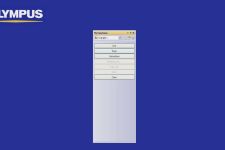
> The dialog box below opens.

7)Call the Activation hotline during local office hours. The dialog box displays the telephone number that is valid for your location.
> The customer will bear the costs of the telephone call.
8)Inform the Customer Support Center employee that you would like to activate a software license by telephone.
9)Read aloud Code A.
> Alternatively, you can use your mobile device (for example, Smartphone), and open this website:
http://www.olympus-sis.com/code-activation/
>On this website, you can enter Code A yourself and then click the [Send] button.
10)When you received Code B, click the [Code B...] button in the [Activate licenses manually] dialog box.
>The [Type Code B] dialog box opens.

11) Enter Code B and click the [OK] button.
12) If you have more than one license, repeat the last three steps until you entered Code B for all your licenses.
13)In the [Activate licenses manually] dialog box, click the [Next] button.
14)When the dialog box displayed on the left-hand side is displayed, your software has been activated successfully. Click the [Next] button to continue the software installation.

■: Standard □: Optional
| Main Licenses | Desktop Licenses | ||||||||
| Start | Basic | Essentials | Motion | Enterprise*5 | Essentials | Motion | Enterprise*5 | ||
| Image Acquisition | |||||||||
| Basic image acquisition | Image capture, live display with live zoom function | ■ | ■ | ■ | ■ | ■ | |||
| HDR (high dynamic range) | ■ | ■ | ■ | ■ | ■ | ||||
| Extended image acquisition | Software auto focus*1and movie acquisition (avi format) | ■ | ■ | ■ | ■ | ||||
| Instant EFI and manual MIA | □ | ■ | ■ | ■ | |||||
| Time lapse | ■ | ■ | ■ | ||||||
| Remote live view (NetCam) | □ | □ | □ | ||||||
| Advanced mortorized image acquisition | Automatic EFI and MIA | ■ | ■ | ||||||
| Z-stack acquisition and stage navigator*3 | ■ | ■ | |||||||
| Image Tools | |||||||||
| Basic image tools | Image history, properties, navigator, gallery view tool window | ■ | ■ | ■ | ■ | ■ | ■ | ■ | ■ |
|
Write and read all major file formats and open Olympus proprietary formats
(DSX, LEXT, and VS file formats) | ■ | ■ | ■ | ■ | ■ | ■ | ■ | ■ | |
| Scale, crosshair and info stamp display | ■ | ■ | ■ | ■ | ■ | ■ | ■ | ■ | |
| Annotations and layer management | ■ | ■ | ■ | ■ | ■ | ■ | ■ | ■ | |
|
Edge detection, smoothing and sharpening filters, contrast adjustment,
shading correction | ■ | ■ | ■ | ■ | ■ | ■ | ■ | ■ | |
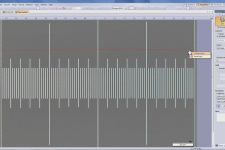
| Extended image tools | Line profile tool window | ■ | ■ | ■ | ■ | ■ | ■ | ■ | |
| Morphology filter, Image arithmetics | ■ | ■ | ■ | ■ | ■ | ■ | |||
| Advanced image tools | Z-stacks projections and intensity calibration | ■ | ■ | ■ | ■ | ||||
| Surface View | □ | □ | □ | □ | |||||
| Customization | |||||||||

| Basic customization | Workflow creation (My function) | ■ | ■ | ■ | ■ | ■ | ■ | ■ | |
| Save and manage layouts | ■ | ■ | ■ | ■ | ■ | ■ | ■ | ||
| Extended customization | Macro manager | ■ | ■ | ■ | ■ | ■ | ■ | ||
| Image Analysis | |||||||||
| Count & measure | Calculates many selectable parameters (diameter, size, color, grey level, ...) on segmented particles on the image. Creates graphical representation of the results with histograms and scattergrams. | □ | □ | □ | □ | □ | □ | □ | |
| Phase analysis (Materials solution) | Calculates area, area fraction and objects count with ROI*2 support. Includes the capability to perform automatic measurement on multiple stage locations*3 | □ | ■ | ■ | ■ | ■ | ■ | ■ | |
| Materials Solution | User workflow oriented advanced image analysis options*4 | □ | □ | □ | □ | □ | □ | □ | |
| Interactive Measurement | |||||||||
| Basic measurement | Distance, angles, rectangles, circles, ellipses and polygons | ■ | ■ | ■ | ■ | ■ | ■ | ■ | ■ |
| Statistics and data export to Microsoft Excel | ■ | ■ | ■ | ■ | ■ | ■ | ■ | ||
| Extended measurement | Magic wand, freehand polygon and interpolated polygon | ■ | ■ | ■ | ■ | ■ | ■ | ||
| Weld measurement | Asymmetry, A-Throat and multiple perpendicular lines | □ | □ | □ | □ | □ | □ | □ | |
| Reporting | |||||||||
| Report Composer | Report using Microsoft Word 2003, 2007 or 2010 | ■ | ■ | ■ | ■ | ■ | ■ | ■ | |
| Detail zoom | Detail zoom capability in Microsoft Word | ■ | ■ | ■ | ■ | ■ | ■ | ■ | |
| Document types | Read existing analysis report format (*.src) and create workbook and chart based on Olympus file format | ■ | ■ | ■ | ■ | ■ | ■ | ■ | |
| Data Management | |||||||||
| Data management utilising Microsoft SQL Server Express | Stream Document Storage (SDS) | ■ | ■ | ■ | ■ | ■ | |||
| Workgroup Database with structured data format | □ | □ | □ | □ | □ | ||||
|
Advanced data management
utilixing Microsoft SQL Server or Oracle 11g *5 | Enterprise Database for large workgroups with user rights management, external database interface (LIMS) and an optional Security File Repository (requires user-specific definition of specifications) | □ | □ | □ | ■ | □ | □ | ||
| Device Support | |||||||||
| Olympus microscopes | MX61A, MX61L, MX61, BX-UCB, BX-REMCB, IX-UCB, SZX-MDCU, SZX2-MDCU, U-CBS | ■ | ■ | ■ | ■ | ■ | |||
| Olympus camera | DP20, 21, 25, 26, 70, 71, 72, 73, Altra20, SC20, SC30, SC100, XC10, XM10, XM10IR, UC30, UC50, XC30, XC50 | ■ | ■ | ■ | ■ | ■ | |||
| Non Olympus camera | Qimaging cameras: MicroPublisher 3.3 RTV, MicroPublisher 5 RTV; Jenoptik cameras: ProgRes C3, ProgRes CT3, ProgRes C5 | ■ | ■ | ■ | ■ | ||||
| Imaging source converter | DFG-1394 A-D (CON 800) analog to digital converter (Firewire or USB 2.0) | ■ | ■ | ■ | ■ | ||||
| Stage controllers | XYZ stage controllers from Objective Imaging, Prior ProScan, Ludl MAC, Märzhauser, ITK and LANG | ■ | ■ | ||||||
*1 Requires Olympus microscope with motorized Z-axis or external motorized Z-axis (Supported by OLYMPUS Stream Motion)
*2 Rectangle, circle, triangle and polygons
*3 Multiple Stage Location is available for Phase Analysis, Grain Size Measurement, Inclusions Worst Field, Porosity and Particle Distribution
*4 Please see page 18 and 19 for further information
*5 Only available in US, Canada, Germany, Switzerland and Austria. Otherwise please contact us via http://www.olympus-ims.com/contact-us
| Materials Solution Specifications | |
| Particle Distribution | |
| Description | Count & classify detected particles in bins and extract statistical values of the population |
| Supported standards | User defined |
| Measurement types |
Particles are defined using simplified threshold settings
Automatic classification according to a selected parameter (size, color or shape) Measurement on ROIs and multiple thresholds Definition of validation and coding according to user defined standards Support of Multiple Stage Location (with OLYMPUS Stream Motion) |
| Output | Class histogram and spreadsheet with individual measurements. Report automatically created in Microsoft Word |
| Phase Analysis | |
| Description | Measures the phase fraction in an image or selected ROIs |
| Supported standards | n/a |
| Measurement types |
Phase fraction per ROIs (Triangle, circle, rectangle or polygon)
Measurement of the total phase percentage per phase on all ROIs Selectable minimum area detection Support of Multiple Stage Location (with OLYMPUS Stream Motion) |
| Output | Spreadsheet with measurement per phase. Report automatically created in Microsoft Word. |
| Porosity | |
| Description | Measures the area fraction, density and number of pores on steels castings |
| Supported standards | n/a |
| Measurement types |
Pores detection per ROIs (Triangle, circle, rectangle or polygon) with overlapping capability
Measurement of the pores density, count and specific area. Measurement on a specified size range Support of Multiple Stage Location (with OLYMPUS Stream Motion) |
| Output | Spreadsheet with individual measurements. Report automatically created in Microsoft Word. |
| Grains Intercept | |
| Description | Measures the mean grain index using the intercept method |
| Supported standards | ASTM E112, GB/T 6394, GOST 5639, ISO 643, DIN 50601, JIS G0551, JIS G0552 |
| Measurement types |
Selection of pattern (Circles, Cross, Cross & Circles, Vertical Lines, Horizontal Lines, Horizontal & Vertical Lines)
Definition of the number of test lines for determination of grain elongation Displays the G-value in the Material Solution Tool Window Stores all results in the image property for additional data mining Support of Multiple Stage Location (with OLYMPUS Stream Motion) |
| Output | Spreadsheet with individual measurements. Report automatically created in Microsoft Word. |
| Grains Planimetric | |
| Description | Measures the distribution of grain index using the planimetric method |
| Supported standards | ASTM E112, GB/T 6394, GOST 5639, ISO 643, DIN 50601, JIS G0551, JIS G0552 |
| Measurement types |
Automatic extraction of grain boundaries
User interaction using Stream sliders for improved usability Displays the G-value histogram in the Material Solution Tool Window for direct interaction Stores all results in the image property for additional data mining Support of Multiple Stage Location (with OLYMPUS Stream Motion) |
| Output | Spreadsheet with individual bins measurements, Stream chart with the distribution. Report automatically created in Microsoft Word. |
| Chart Comparison | |
| Description | Allows the user to compare live or selected images with standard charts |
| Supported standards | ASTM E112, ISO 643:83 & ISO 643:03, DIN 50602, ISO 945, SEP 1520, SEP 1572 and EN 10247/07 (sold under license from copyright owners) |
| Measurement types |
Multiple displays available, including live overlay
User interaction using Stream sliders for improved usability Calculates statistics on the selected values Stores all results in the image property for additional data mining |
| Output | Spreadsheet with individual measurements |
| Inclusions Worst Field | |
| Description | Measures the non metallic inclusion rating in steel using the worst field method |
| Supported standards | ASTM E45 Method A, DIN 50602 Method M, ISO 4967 Method A, GB/T 10561 Method A, JIS G0555 Method A, UNI 3244 Method M |
| Measurement types |
Automatic detection of non metallic inclusion using colors, shape and size
Automatic classification of oxides, sulfides, silicates and aluminates Live display of the detected inclusion with its rating Stores all results in the image property for additional data mining Support of Multiple Stage Location (with OLYMPUS Stream Motion) |
| Output | Spreadsheet with individual measurements. Report automatically created in Microsoft Word. |
| Cast Iron | |
| Description | Measures the distribution, shape and size of graphite content in cast iron samples |
| Supported standards | EN ISO 945-1, ASTM A247, JIS G5502, KS D 4302, GB/T 9441 and ASTM E2567-11 |
| Measurement types |
On polished samples: Automatic measures the characteristics of the graphite content (Size, Shape and Distribution)
On etched samples: Measures the ferrite to pearlite ratio Integrated workflow which take into account the sample status (etched or polished) Stores all results in the image property for additional data mining |
| Output | Spreadsheet with individual measurements. Report automatically created in Microsoft Word. |
| Layer Thickness | |
| Description | Measures the thickness of single or multiple layers (cross section view) |
| Supported standards | n/a |
| Measurement types |
Layer boundaries can be specified using automatic detection, magic wand or manual mode.
Individual measurements can be added or deleted later on. Measurement of any type of layers (with even or uneven boundaries) is supported. Layer thickness measurement calculates mean, maximum and minimum values as well as statistical data for each individual layer. |
| Output | Spreadsheet with individual measurements. Report automatically created in Microsoft Word. |
| Throwing Power | |
| Description | Measures the distribution of copper plating thickness in through-holes or microvias in printed circuit boards. |
| Supported standards | n/a |
| Measurement types |
Manual measurements on selected point of interest on the sample
Predefined points that will be triggered by the operator Selection of the vias type and documentation of the complete analysis Report and automatic calculation according to the manual measurements |
| Output | Spreadsheet with individual measurements. Report automatically created in Microsoft Word. |
| Optional Feature Specifications | |
| Count & Measure | |
| Description | Automatically counts and classifies objects and particles |
| Supported standards | n/a |
| Measurement types | Multiple threshold methods are available (automatic, manual HSV, manual and adaptative). The system can automatically measure multiple parameters on all segmented objects (Area, Aspect Ratio, Bisector, Bounding box, Gravity Center, ID, Mass Center, Intensities Values, Convexity, Diameters, Elongation, Feret, Extent, Next Neighbor Distance, Orientation, Perimeter, Radius, Shape, Sphericity ...). |
| Output | Spreadsheet and charts with individual and distribution measurements. |
| Weld Measurement | |
| Description | Manual measurements used in the control of welding distortion |
| Measurement types |
A-Throat, Multiple perpendicular lines and Asymmetry
Manual measurements of complex geometries. |
| Output | Spreadsheet with individual measurements and statistics. |
| Surface View | |
| Description | Displays a 3D perspective of an image stack acquired with a motorised Z. (available with Stream Motion) |
| Display |
Creates a new image with a 3D perspective.
Easy navigation and rendering with the mouse Measurement of height profiles on the 2D projection |
| Output | The result image can be exported. Animation can also be created automatically. |
| Netcam | |
| Description | Live transmission of images over the network |
| Display | Remote Live view of the image using Microsoft Internet Explorer |
| Output | Several users can share the same image at the same time. |
| PC Requirements | |
| CPU | Intel Core series 1.8 GHz or higher (Intel Core i5-650, 3.2 GHz recommended) |
| RAM | 3 GB or more (8 GB for Windows 7 64bit) |
| Hard disk | 2 GB or more free space |
| OS | Windows XP Professional SP3 (32 bit) / Windows Vista Business, Ultimate SP2 (32 bit) / Windows 7 Professional (32 bit/64 bit)* |
| Graphic card | 1280x1024 monitor resolution with 32 bit video card |
* DP20/DP70 dose not support Windows 7 64bit. DP73 supports only Windows 7 64bit.
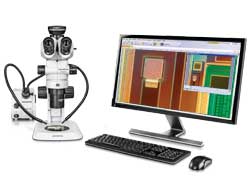
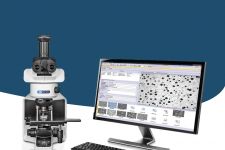
OLYMPUS Stream is an advanced micro-imaging software that allows you to seamlessly acquire, process, and measure images, to create valuable data and reports. The software can easily be customized and provides sophisticated results with simple flexible operation.
![]() |
Your time is just as important as your working conditions. That's why the OLYMPUS Stream system can be personalized to fit your process flow. An easy-to-use interface guides you effortlessly through every step from image adjustment and capture, measurements, report creations, and archiving-or whatever you need to achieve. As a result, you'll find that you can complete your tasks more efficiently, regardless of their complexity. |
The OLYMPUS Stream software system can be purchased in a variety of packages designed to fit your needs- whether you require the capabilities found in the entry- level OLYMPUS Stream Start or the advanced automation controls found in OLYMPUS Stream Motion. The packages are also expandable with specific application modules to meet unique analysis needs.
There's a right package for your requirements. You can create your system exactly as you wish-your way.
With the OLYMPUS Stream system, you're prepared not only for today's applications but for tomorrow's as well. Whatever the future may bring, OLYMPUS Stream system solutions will let you keep up with advances in technology.
![]() OLYMPUS Stream Motion user interface example |
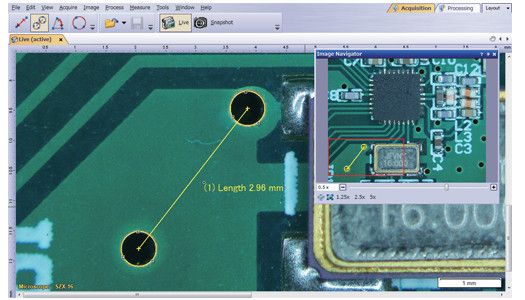
As you progress from image capture to report creation, the tool windows you need are always displayed at every stage. You can quickly and easily access control parameters. |
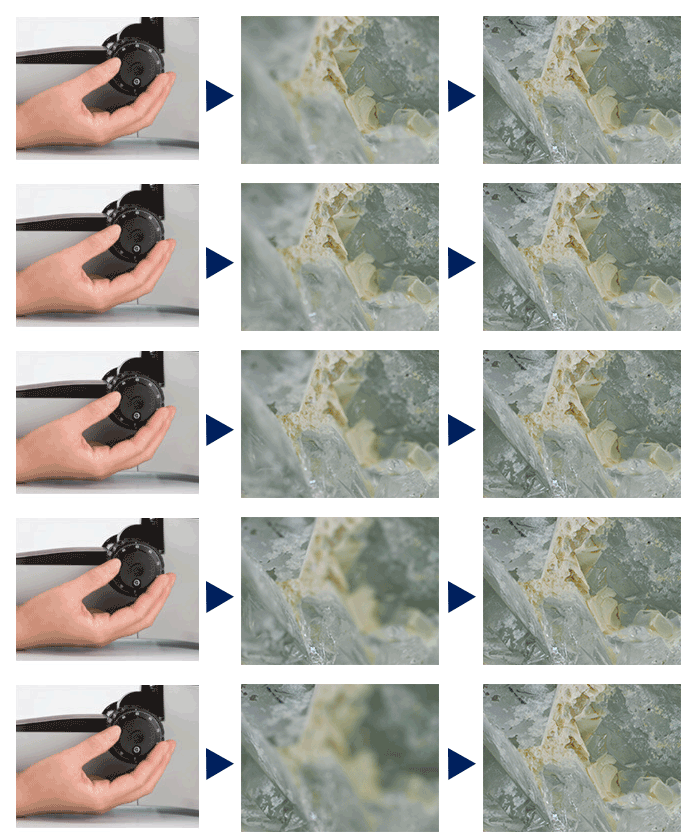
![]() Work flow 1 : Image Acquisition Place your sample on the system and adjust the optics for a crisp, image. |
![]() Work flow 2 : Measurements Capture your image with a simple mouse click then measure it or add enhancements with advanced image-processing techniques. |
![]() Work flow 3: Particle Analysis Make a quick measurement with the mouse, or use the preset particle-counting application. |
![]() Work flow 4: Report Generation Save your data and export it to a customized report, that can be edited in Microsoft Word. |
Depending on your needs, you can arrange the layout of the tool window to best fit your workflow. You can create customized layouts with all the necessary functions for each activity.
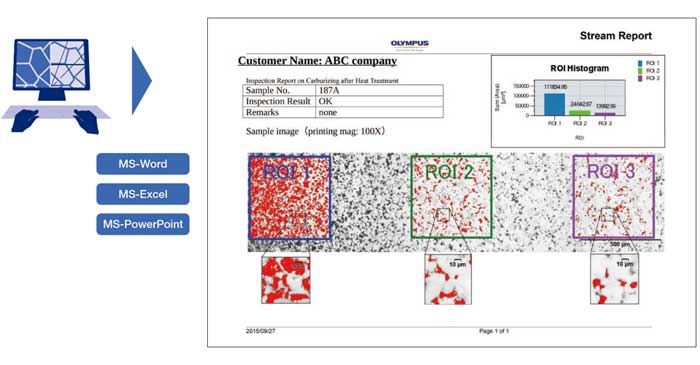
OLYMPUS Stream can create professional reports directly into Microsoft Word. Report templates and headers can be modified according to your company's needs. The images can be zoomed and annotated along with the metadata. Statistical analysis and graphing are also accomplished using Excel with the output easily imported into your report. OLYMPUS Stream uses a unique compression method that allows you to store view reports without the need for any unique applications software.
You can create intuitive workflows based on the most frequently used functions, simplifying repetitive tasks so that even new users are able to operate the software easily and efficiently.
Using the OLYMPUS Stream image navigation allows you to pan and zoom on live or stored images. The image navigator interface provides immediate updates of your location on both the zoomed and unmagnified images. The navigation system provides you with fast, immediate displays of your sample before you acquire the image. All image viewing and manipulation is carried out with a clean, simple user interface, providing fast and intuitive results.

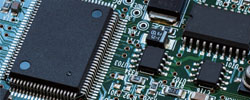
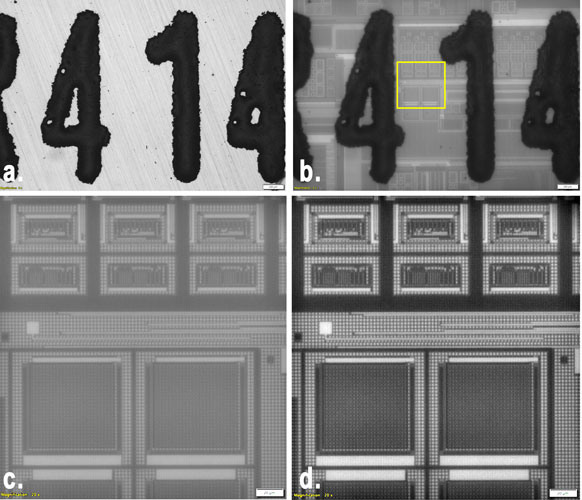
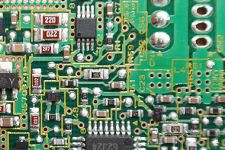
Peeled integrated circuit
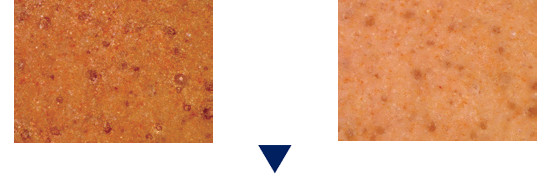
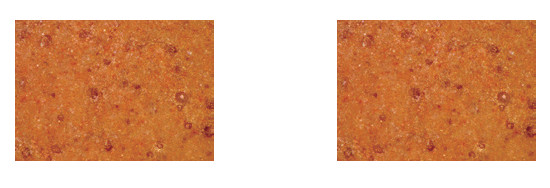
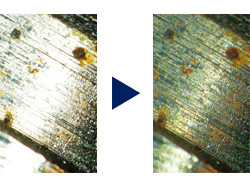
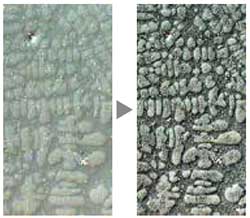
HDR (High Dynamic Range) offers an exceptional level of contrast for microscopic images containing both bright, highly reflective features as well as darker low-reflective features. As an integral part of OLYMPUS Stream software the HDR algorithms automatically acquire a series of images at varying exposure times. Within seconds create a composite image perfectly exposed at every level. This is especially useful for metallurgical microstructures, printed circuit boards, or composite components. HDR imaging is also offered when acquiring stitched, panoramic (MIA) images, or when using the built in Extended Focal Image (EFI) capability to create an image with focus even with varying heights.
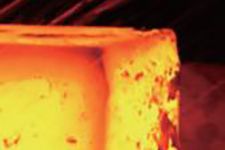
![]() Normal image without HDR |
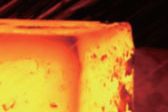
![]() Perfectly exposed image with HDR |
OLYMPUS Stream software provides images for samples that extend beyond the standard depth of focus. The instant Extended Focus Image allows you to use the fine focus adjustment to combine many images at different z-levels to provide you with a single combined image that is entirely in focus.
![]() Extended focused image of diamond |
![]() |
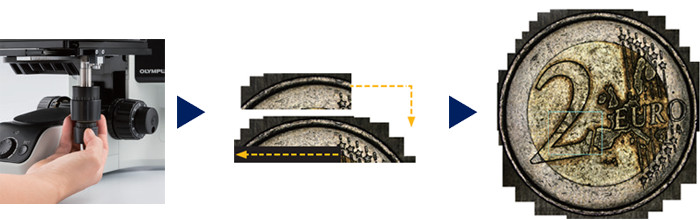
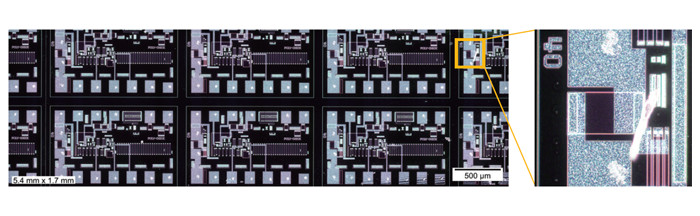
OLYMPUS Stream software provides Multiple Image Allignment (MIA) to enable the creation of panoramic images of samples that extend beyond the field of view. The OLYMPUS Stream software then quickly stitches them together, providing you with an output ready for visualization or complex measurement. Simultaneous use of instant EFI is also possible.
![]() Multiple image acquisition of Platinum wires cross sections |
![]() |
For precise sample focusing and fast image acquisition, OLYMPUS Stream offers two autofocus options. For surfaces with high contrast, OLYMPUS Stream can use its contrast-based software autofocus. For surfaces with low contrast, such as polished or transparent materials, the optional laser autofocus unit is a fast, repeatable option when integrated with the Olympus BXiS microscope system. Both systems provide perfectly focused images with the simple click of a button.
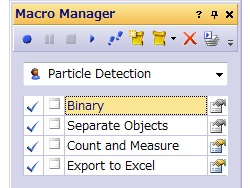
OLYMPUS Stream provides a way to preset complex imaging and measuring tasks with the Macro Recorder. The Macro Recorder creates step-by-step processes, which, after completion, are stored and then implemented with a single click. The capability ensures different operators are using the same settings for a consistent output.
![]() Multiple Image acquisition Pt wires cross sections |
When creating large, high-resolution automated Multiple Image Alignment (MIA) images, the combination of OLYMPUS Stream software with a motorized stage easily provides a fast result. The operator selects MIA scanning by using the stage navigator tool, which steps the operator though the entire process. When using the automatic EFI function with a motorized focus unit, the software recommends the optimum number of images required to provide perfectly focused images even outside the depth of field. |
OLYMPUS Stream can recognize a sample's tilt by taking three or more points on the image data when performing automated MIA using motorized systems. This shortens the time while increasing the repeatability when acquiring images.
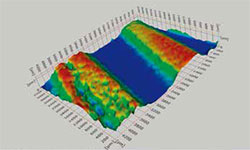
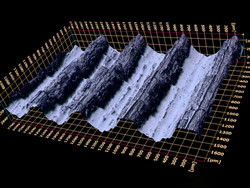
By using the motorized focus unit, sample with different heights can be imaged automatically. In addition, a 3D image can be created that can be measured - using the z-stack data.
* For the appropriate main license for this solution, please refer to the specification table page.
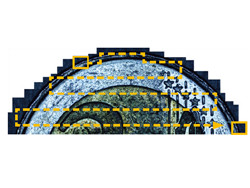
![]() Coin detail |
![]() 3D profilometry of wear track |
OLYMPUS Stream has a variety of filters for edge detection, smoothing, and other purposes. You can visualize image features by enhancing and modifying your image with a processing filter. For best results, you can check or adjust the filter results in a preview display before making the change. Additionally, image manipulations such as sum, subtraction and erosion are also carried out without losing your original image.
![]() Filter (Enhancement of contrast by DCE filter) |
![]() Arithmetics |
![]() Measurement Operation |
Optical inspection and quality control require frequent measurements. OLYMPUS Stream provides interactive measurement functions such as distances, angles, rectangles, circles, ellipses and polygons. The measurements are made with your mouse and show immediate feedback on the image or in the live data table. All results are saved with the image files as records. To further improve on accuracy, optical settings such as system magnification are automatically recorded when combined with the Olympus Microscope system. |
Included with the OLYMPUS Stream Basic package and other more advanced packages is an integrated data analysis package. The data analysis provides statistical analysis on your data based on your needs. You can calculate mean, standard deviation, min, max, and more. All of the data gathered is exported to Microsoft Excel with a single click.
OLYMPUS Stream Essentials and other more-advanced packages include a wand for automatically detecting the edges of the sample you wish to measure. The Magic Wand allows you to select the measurement points-free hand for simple or multiple lines, plus free hand polygon measurements for irregularly shaped objects.
Each image as it is captured and annotated is broken into layers (original image, measurement data, annotations etc.), allowing you to change processing files (smoothing and/or sharpening) without affecting your measurement results. You can easily retain your measuring data as you carry out your analysis and measurements.
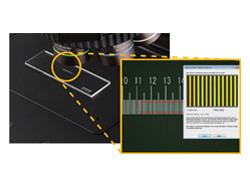
For quality control and traceability recording the conditions of image acquisition is essential. With OLYMPUS Stream, you can quickly create a calibration report for important information such as magnification, objective lens type, pixel size, scale bar, etc. The Info Stamp created from updated calibration information can be overlaid on the acquired image and reports.
OLYMPUS Stream offers an optional set of measurements dedicated to the measurement of geometric distortion induced by the heating during welding. Asymmetry, Multiple Perpendicular Lines and A-Throat measurements can be conducted with a few simple clicks. This allows detailed and statistical measurements of the welding distortion. These measurements are perfect for assessing the quality of the weld.
*For the appropriate main license for this solution, please refer to the specification page.
![]() Original Image |
![]() Measurement: A-throat |
![]() Object Detection and Classification |
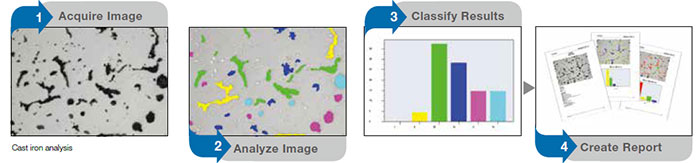
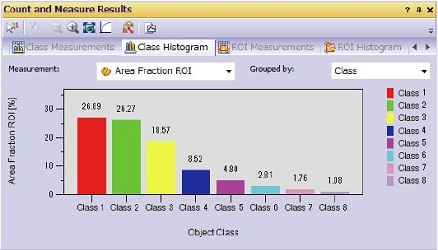
Object detection and size distribution measurement are among the most important applications in digital imaging. OLYMPUS Stream incorporates a detection engine that utilizes threshold methods to reliably separate objects (e.g. particles, scratches) from the background. OLYMPUS Stream offers more than 50 different parameters for shape, size, position, and pixel properties (intensity, gray value) for object classification. Count and Measure is is a software option for OLYMPUS Stream
Essentials or higher.
*For the appropriate main license for this solution, please refer to the specification table page. |
With the click of an icon on the Materials Solution tool window, you can execute the most complex image analysis task quickly, precisely, and in compliance with most common international standards.
In combination with a motorized stage, OLYMPUS Stream offers a unique method to speed up your work and to conduct advanced quantitative analysis on several images using the integrated stage path software. It is possible to define various scan areas (circular or squared) and to run the Materials Solution on all of these scan areas without tedious preparation work. At the end of the process, OLYMPUS Stream will produce a report that can contain individual results as well as combined results
(requires motorized stage support available in OLYMPUS Stream Motion).

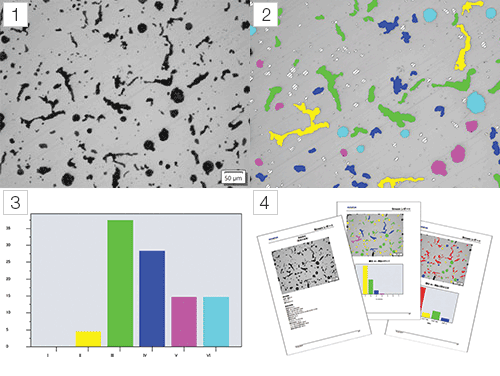
Example: Particle Distribution
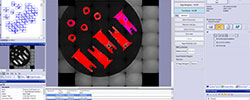
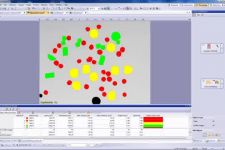
This solution offers easy creation of particle size distribution histograms from a series of images from different sources (live image, existing images and stitched images). It is possible to select any type of parameter to measure and to easily produce a graphical representation of the distribution according to user defined bins or even by using diverse classifications available in international standards. This is an integrated solution in the Materials Solutions option with extensive user guidance from the image capture to the analytical report. This is an ideal tool for those who want to perform granulometry and other particle sizing methods without the complexity typically associated with these measurements.
![]() Residue of paper filter |
![]() Classification |
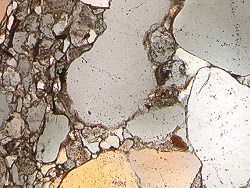
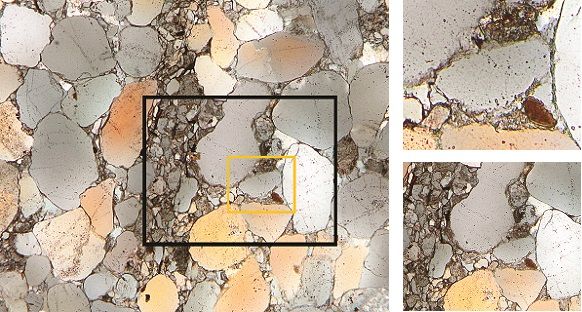
![]() Mineral compound |
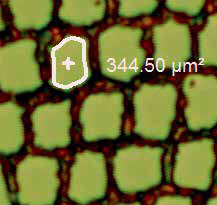
OLYMPUS Stream Essentials and more-advanced packages offer a new integrated solution to perform phase analysis on a selection of various Region Of Interest (ROI) including triangles, circles, rectangles and polygons. From the sample information to the analytical report, OLYMPUS Stream guides you through all steps and helps to cumulate results on multiple images. |
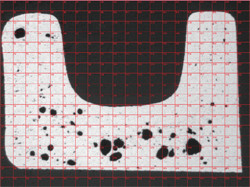
![]() Voids in welded place |
This solution is for the measurement of pores, whether that is area fraction or the number on surface with use of ROIs (circular, triangle, rectangle and polygons) and thresholds. Additionally OLYMPUS Stream will automatically calculate the pores density on the image. It is also possible to select only a certain range of pore sizes in order to achieve the necessary reproducibility. It allows the placement and overlapping of multiple ROIs in accordance with the standards used in the measurement of porosity for metal castings. |
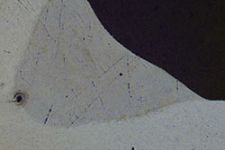
![]() Etched grain structure |
This solution is for steel manufacturers measuring and controlling grain size after cross-sectioning, polishing or etching steel samples. OLYMPUS Stream can calculate the grain size number G by the intercept method automatically without time consuming manual input. The results are created according to international standards. |
![]() Etched grain structure |
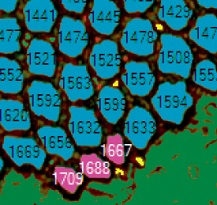
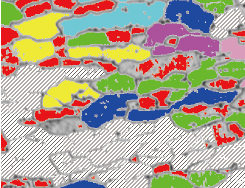
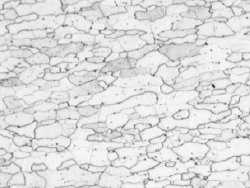
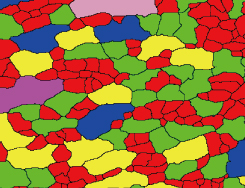
This solution is for steel manufacturers measuring and controlling grain size after cross-sectioning, polishing or etching steel samples. OLYMPUS Stream can calculate the grain size number G by the planimetric method. The results are created according to international standards. |
![]() Overlay a live image with a reference image |
A live or still image can be compared with standard charts. Overlay comparisons can be made, and a function preview is available. This solution can be used for ASTM grain size number evaluation, non-metallic inclusion rating, and cast-iron shape class evaluation. It can also be used for the examination of carbide structure in steels. |
![]() Inclusion |
This solution is for steel manufacturers measuring and controlling the shape and size of non-metallic inclusions (oxide, alumina, sulphide, or silicate) in steel. OLYMPUS Stream can evaluate non-metallic inclusion with the results created automatically according to international standards. |
![]() Polished cast surface |
This solution is for casting manufacturers who need to measure and control the graphite nodularity to check the mechanical characteristics of their cast products. With OLYMPUS Stream, this nodularity can be calculated by graphite size, shape, and distribution. The results are automatically created according to international standards. |
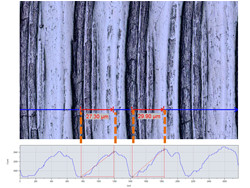
![]() Carbon fiber fabric |
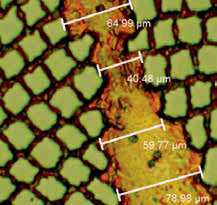
One or multiple layers of a cross-sectioned sample can be measured using the Stream Layer Thickness software. The shapes are defined and the layers automatically measured. This module is used for a wide variety of applications, such as evaluating paint-coating thickness and layer thickness evaluation of multilayer materials such as composite plastics. |
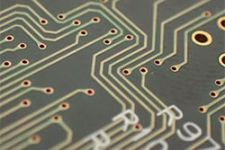
![]() Cross section of PCB |
This Material Solution measures the distribution of copper plating thickness in through-holes or micro-vias. This is a unique solution that will guide the printed cirucit board (PCB) quality examiner throughout all the necessary measurements needed for determining the dimple depth which represents the difference in heights between the plated copper within a via and around the perimeter of that via. |
![]() Example: Report for Grain Sizing Planmetric |
Once the advanced analysis is performed, OLYMPUS Stream can compile all the produced data (processed images, tables and graphs) into a unique report using Microsoft Word. The image used in the report can be edited, scaled to the desired magnification (either the printed magnification or a fixed magnification that will allow easy comparison) or even magnified using the detail zoom function. (requires Microsoft Word 2003 or newer version) |
![]() |
The DP73 is a 17.28M-pixel cooled digital color camera with pixel-shift technology that attains ultra high resolution, superior sensitivity and precise color fidelity. This camera is compatible with all observation methods and produces contrast balanced images using a unique dynamic range technology. |
This high-resolution 5M-pixel color CCD camera provides optimum true color performance for all industrial applications and imaging techniques. The DP26 incorporates high speed progressive scanning with IEEE1394b connectivity.
This 2M-pixel color CCD camera can be controlled from a space-saving, intuitively operated hand-switch. The hand-switch incorporates the 12 most frequently used measurement functions for efficient inspection of industrial parts.
> Click here for the Olympus' lineup of digital cameras.
> Click here for the comparison sheet of Olympus' digital cameras.
OLYMPUS Stream workgroup database option is ideal if you need to efficiently browse through thousands of images and other files created in the past, streamlining your workflow from image capture through data management.
OLYMPUS Stream offers an advanced client-server database option based on Microsoft SQL Server technology. It allows you to assign user-definable fields (creation date, project ID, parts number, deadline, and meta-data) on images and other files and folders, permitting efficient data sharing and quick searches. The data structure can be defined for every organization and making data sharing simple and easy. The Workgroup database is an option for OLYMPUS Stream Basic and higher versions.
OLYMPUS Stream Document Storage is an automatically installed storage folder for a single workstation that provides a simple structure that can safely store and organize your images. This easy to use database makes finding, sorting and filtering your images quick and simple. It is even possible to search the images for the result of the Material Solution. OLYMPUS Stream Document Storage utilizes the Microsoft SQL Server Express. Stream Document Storage is available starting from OLYMPUS Stream Basic.
The OLYMPUS Stream Netcam solution lets any authorized network user connect to your OLYMPUS Stream PC and visualize the same image in real time with a web browser. What's more, the DP21 also provides self-contained integration into your local network, allowing you to share your work across your office or around the world.
Stay up to date with OLYMPUS Stream. The report tool can use the latest version of Microsoft Office suite.
The 64-bit edition of Microsoft Windows 7 is the new standard in operating systems. OLYMPUS Stream fully utilizes all of the advanced capabilities of 64-bit computing for your everyday tasks. You can smoothly execute advanced image processing tasks (like counting more than 2 million objects simultaneously) that were impossible before.
![]() |
OLYMPUS Stream can be implemented for connectivity on your LAN or your global network. The OLYMPUS Stream Enterprise* solution will operate smoothly in any work environment whether it's simple or complex.
*Only available in US, Canada, Germany, Switzerland and Austria. Otherwise please contact us via http://www.olympus-ims.com/contact-us |
Copyright 2013 OLYMPUS CORPORATION, All rights reserved. Terms Of Use | Privacy Statement